Docker exec format error: Check the Image and the Entrypoint
Trace a Docker exec format error through the target daemon, deployed image ID, registry platform and entrypoint before choosing a rebuild or packaging fix.
 DM
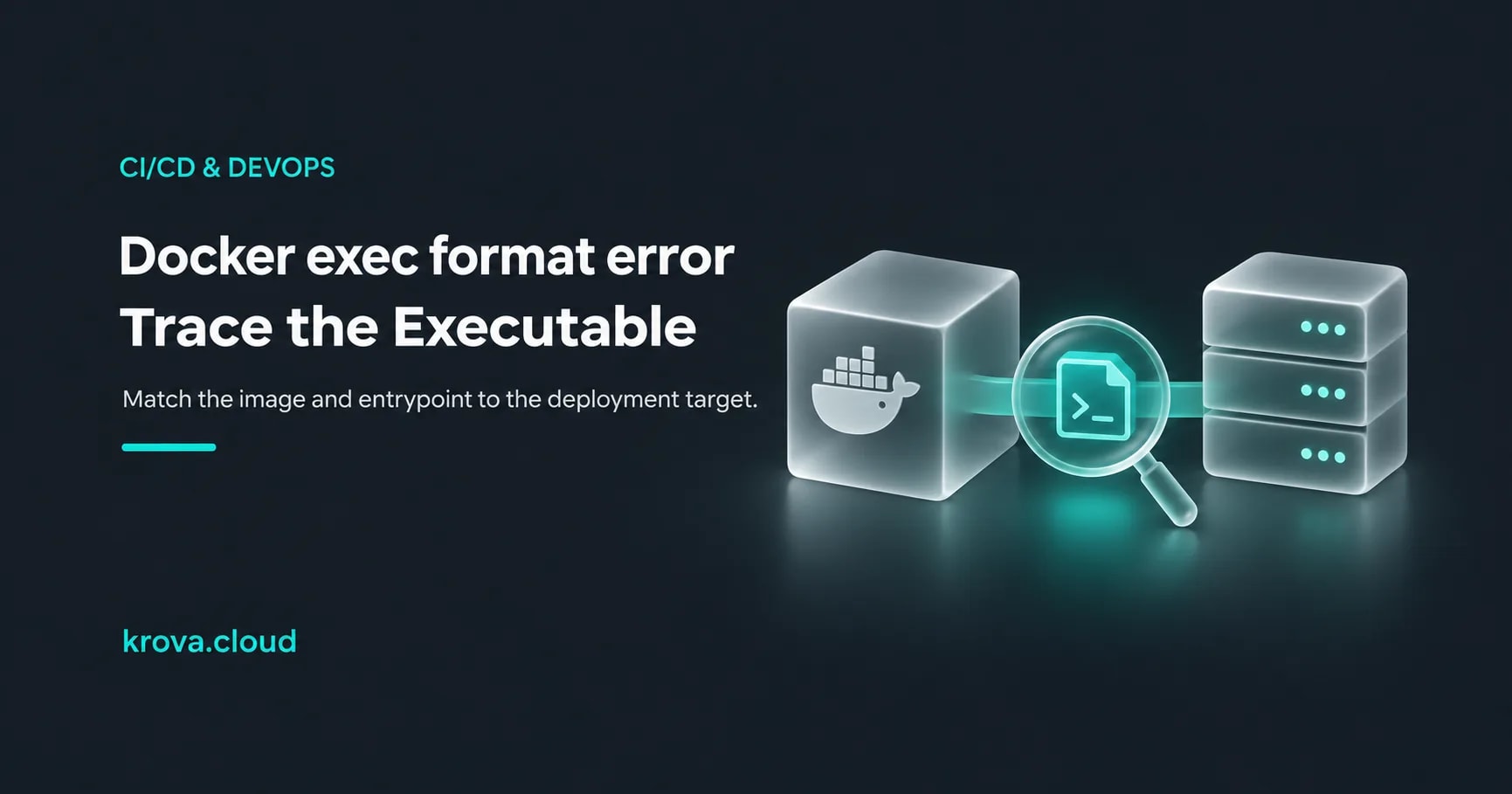
Imagine building an API image on an ARM laptop, pushing it successfully, and deploying it to a Linux server. The pull completes, but the process won't start: exec format error. The image has arrived. That doesn't mean the executable inside it can run there.
Compare the target Docker daemon, the image actually used by the failed container, and the entrypoint executable before rebuilding. A platform mismatch is one possibility. A script without a usable interpreter declaration or an incorrectly packaged binary can send you down a different path. Keep the complete startup error and the path it names.
The Linux execve() manual describes ENOEXEC as an unrecognized executable format, wrong architecture or another format error. It separately lists missing script or ELF interpreters under ENOENT. Similar-looking startup failures therefore need their own evidence; don't translate every loader error into “build for amd64.”
Start with the deployment daemon
Your laptop's architecture isn't necessarily the deployment architecture. Docker contexts let one client address different daemons. Run the inspection from the same deployment environment, preserving its --context, --host and environment selections.
docker context show
docker info --format '{{.OSType}}/{{.Architecture}}'
Docker info reports daemon information. Record the endpoint and platform together. Names can differ between interfaces: x86_64 corresponds to Docker's amd64 platform spelling, and aarch64 to arm64. Compare their meaning rather than requiring identical strings.
In our hypothetical deployment, suppose the actual server is linux/amd64. That is an example assumption, not a claim about every Krova Cube. Verify your own target before choosing a build platform.
Follow the failed container's image ID
A registry tag, a local image and a created container are different observations. If the failed container still exists, inspect it without trying to start it again. Replace api-staging with its real name or ID:
docker container inspect --format \
  'image={{.Image}} entrypoint={{json .Config.Entrypoint}} cmd={{json .Config.Cmd}}' \
  api-staging
The container inspection reference documents reading container details; Docker's inspection examples show selecting individual fields. Copy the returned ID into this next command, replacing the uppercase placeholder:
docker image inspect --format \
  '{{.Id}} {{.Os}}/{{.Architecture}}' IMAGE_ID_FROM_CONTAINER
This image inspection concerns the local artifact the container references. If the container was removed automatically, preserve the deployment's resolved image identity on the next controlled attempt. The current registry tag alone cannot reconstruct what an earlier container used.
For a registry image, separately inspect the reference the pipeline published. This placeholder requires your own registry and authorized access:
docker buildx imagetools inspect registry.example.com/acme/api:releaseImagetools inspect displays registry manifest information, including platform entries. Docker's multi-platform guide explains how an index can point to several image variants. Record the registry digest and relevant variant beside the container's local image ID. They identify different objects; don't expect every digest in that chain to be equal.
A matching image platform isn't an executable test
Suppose the container's image reports linux/amd64, matching the example server, but the startup failure remains. Now examine what the container actually starts: its configured entrypoint and command, deployment overrides, and any mounted file that replaces the packaged entrypoint. Inspecting a different source checkout won't establish the deployed file's contents.
A Dockerfile can copy a prebuilt executable into an otherwise compatible base image. Setting a target platform doesn't rewrite those copied bytes. In that case, inspect the artifact from the failed build or image using your normal artifact inspection workflow. For an ELF executable, GNU Binutils' readelf -h displays its file header:
readelf -h ./apiHere ./api must be the executable you are investigating, not an arbitrary local build. Compare its Machine field with the intended target. If it isn't an ELF file, that result is a reason to identify the actual file format, not proof that it is simply the wrong CPU architecture.
For a script, inspect the first line, its exact bytes and the interpreter available inside the final image. The Linux execution reference describes the #! interpreter convention. Docker's Dockerfile reference also explains that exec-form instructions don't automatically invoke a shell. Running a script successfully through a shell on your laptop doesn't verify direct execution in the container.
| Observation | Next decision |
|---|---|
| Target and selected image platform differ | Build or select the intended platform, or verify deliberately configured emulation |
| Platforms match, ELF machine differs | Fix compilation or binary-download selection in the build |
| Named entrypoint is a script | Check interpreter declaration, bytes and interpreter availability |
| Intended artifact differs from the failed container's image | Correct deployment selection before diagnosing a new build |
Repair the layer that disagrees
For a project you control, a single-platform rehearsal build could look like this. It executes your Dockerfile, creates or replaces the local api:arch-check tag, and does not deploy the application:
docker buildx build --platform linux/amd64 --load -t api:arch-check .Choose the platform from your verified target. The Buildx build reference documents --platform and loading a single-platform result with --load. A builder still needs suitable runtime support for foreign-platform build steps. The flag itself doesn't install emulation or make a hard-coded binary download portable.
Use target-aware compilation or artifact selection where the Dockerfile needs it. Then inspect the resulting image and executable again. If you need to identify a remote builder, Krova's guide to choosing the right builder covers that separate check; clearing its cache is not an architecture repair.
Finally, run the corrected artifact in staging through the same entrypoint and deployment settings, then exercise an application readiness check. Record the observed result. Starting a process establishes less than serving a valid request, and a successful emulated test establishes a different execution environment from a native target.
Rehearse your container deployment on Cube
Use a self-managed Linux Cube to verify the actual Docker daemon, image and application path before changing a live deployment.
Creation context: This AI-assisted guide uses primary documentation and a hypothetical deployment. The commands are illustrative and were not executed for this article; no customer incident or performance benchmark is claimed. The cover is a generated conceptual illustration.