Dev Container Rebuilds: Check Where Your Workspace Is Stored
Identify the bind mount, volume or container layer holding your workspace before a dev container rebuild, especially on a remote Docker host.
 RB
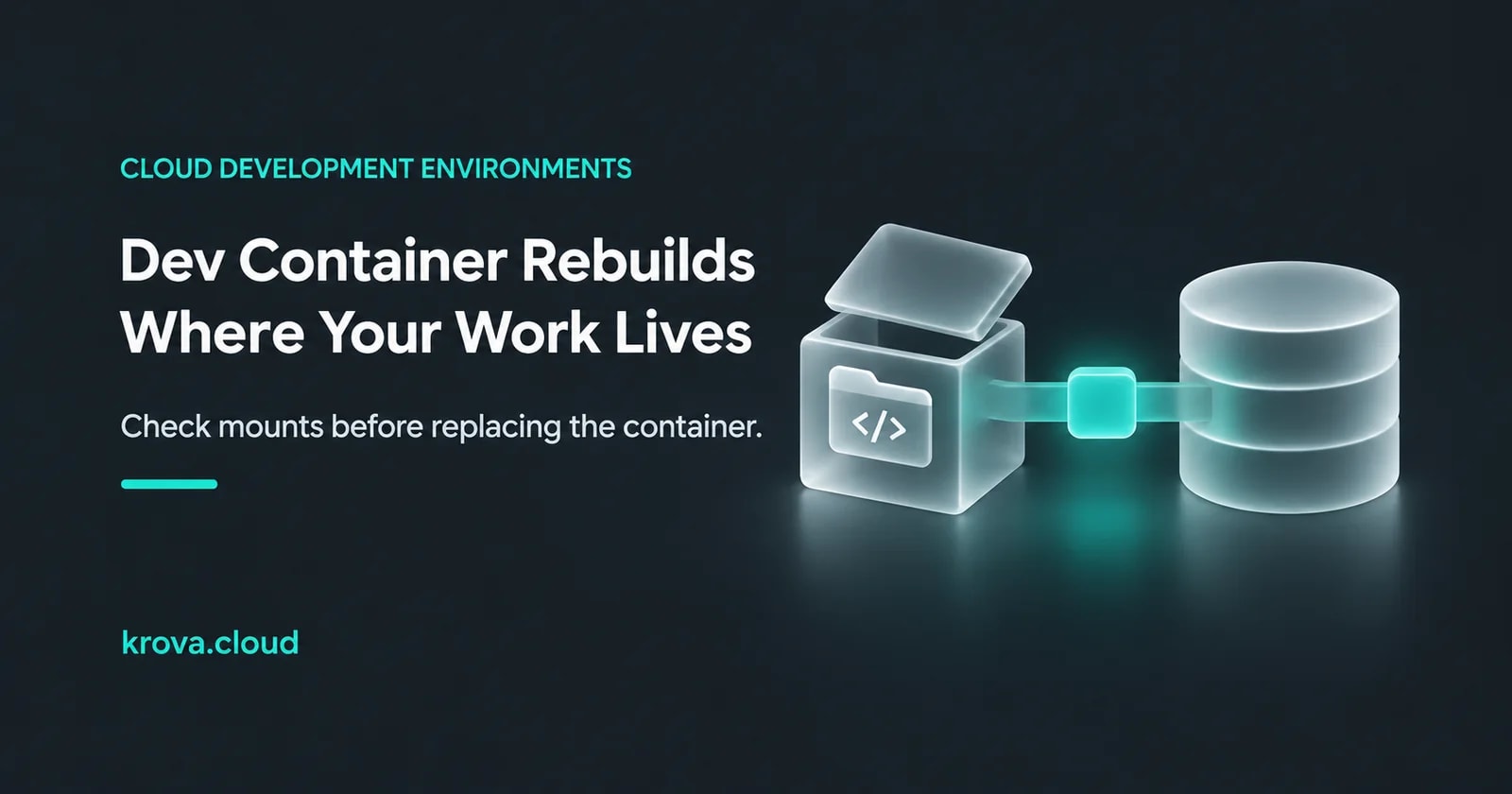
Suppose you’ve spent an afternoon fixing a bug in a dev container. You change the base image and VS Code asks for a rebuild. The code is visible in the editor, but you can’t remember whether it came from your laptop, a folder on the remote host, or a Docker volume. Before accepting the rebuild, answer that storage question.
Save your files, check the repository’s uncommitted and untracked work, and identify the mount that contains the workspace. Preserve anything important outside the container’s writable layer before replacing it. Docker’s storage overview explains that a container’s writable layer is removed with the container, while mounted storage has a separate lifecycle.
A dev container is a development runtime. The repository and its generated data can live in different places. VS Code’s disk-performance guide describes both a bind-mounted workspace and cloning a repository into a container volume. The folder name in the editor is insufficient to distinguish those arrangements.
From a shell connected to the correct Docker daemon, inspect the actual container. Substitute its name or ID below. If your editor is attached to a remote host, confirm your Docker context before interpreting the result.
docker context show
docker inspect --format '{{json .Mounts}}' YOUR_CONTAINER
Read each relevant mount’s Type, Source and Destination, and its Name when present. Match the workspace path inside the container to the destination. Check for nested mounts as well. A dependency directory can use a separate volume underneath a bind-mounted repository. This command inspects configuration and does not copy the files.
For a bind mount, the source is a host path. Docker’s bind-mount documentation specifies that it belongs to the machine running the Docker daemon. With a remote daemon, a path like /home/dev/project refers to that remote machine. Verify that source and preserve any work you need there before changing the environment.
For a volume, record its identity and how the next container will mount it. Docker’s volume documentation explains that volume data can persist after container removal. A replacement container still needs to attach the intended volume. Anonymous volumes get generated identities and are not automatically shared with each new container. Avoid cleanup that removes the storage you intend to keep.
If an important path is outside every relevant mount, treat it as potentially container-local. Copy the needed files to a verified destination while the container still exists, then check the copy. Include generated fixtures, local databases and ignored files that matter to your work. A Git commit preserves the files it tracks, so review the other files separately.
For remote development, the VS Code remote Docker host guide describes remote bind mounts and volume-backed workspaces. Keep the host path or volume identity in your environment notes beside devcontainer.json. If a mount hides existing files at its destination, an apparently empty workspace can be a mount-selection problem. Check the configuration before creating a second copy.
Rehearse the storage behavior with a disposable checkout. Add a harmless untracked marker in the workspace and another in a temporary path outside its mounts. Rebuild using the same configuration and inspect which data remains. This proposed check tells you about that container replacement. It doesn’t establish recovery after deleting the host or its disk, so maintain a separate recoverable copy of important work.
If your Docker host runs on a Krova Cube, the Cube is the host in this storage map. Its disk, Docker volumes and the container layer have different lifecycles. The cloud development environment overview describes the broader workflow. For this rebuild, finish with a concrete record of where the repository lives and how the replacement container finds it.
This guide was prepared with AI assistance using the linked primary documentation. The workspace scenario and proposed marker check are hypothetical. No dev container was rebuilt for this article.
Rehearse the environment on a Cube
Use a self-managed Linux Cube to check the workspace storage and replacement behavior with a disposable project.